How to Speed Up Android Phone.
Learn how to speed up your Android phone with simple tips and tricks. Optimize performance, free up storage, boost battery life, and enjoy a faster, smoother Android experience.
Introduction
Android phones are incredibly versatile, but over time, many users notice their devices start to slow down. Apps may take longer to open, scrolling can become laggy, and overall performance might decline. If you are asking yourself, “how to speed up my Android phone?”, this guide will give you actionable tips to get your device running smoothly again.
Whether you have an older model or a newer device, these strategies are designed to optimize performance, free up storage, and ensure your Android phone operates at its peak.
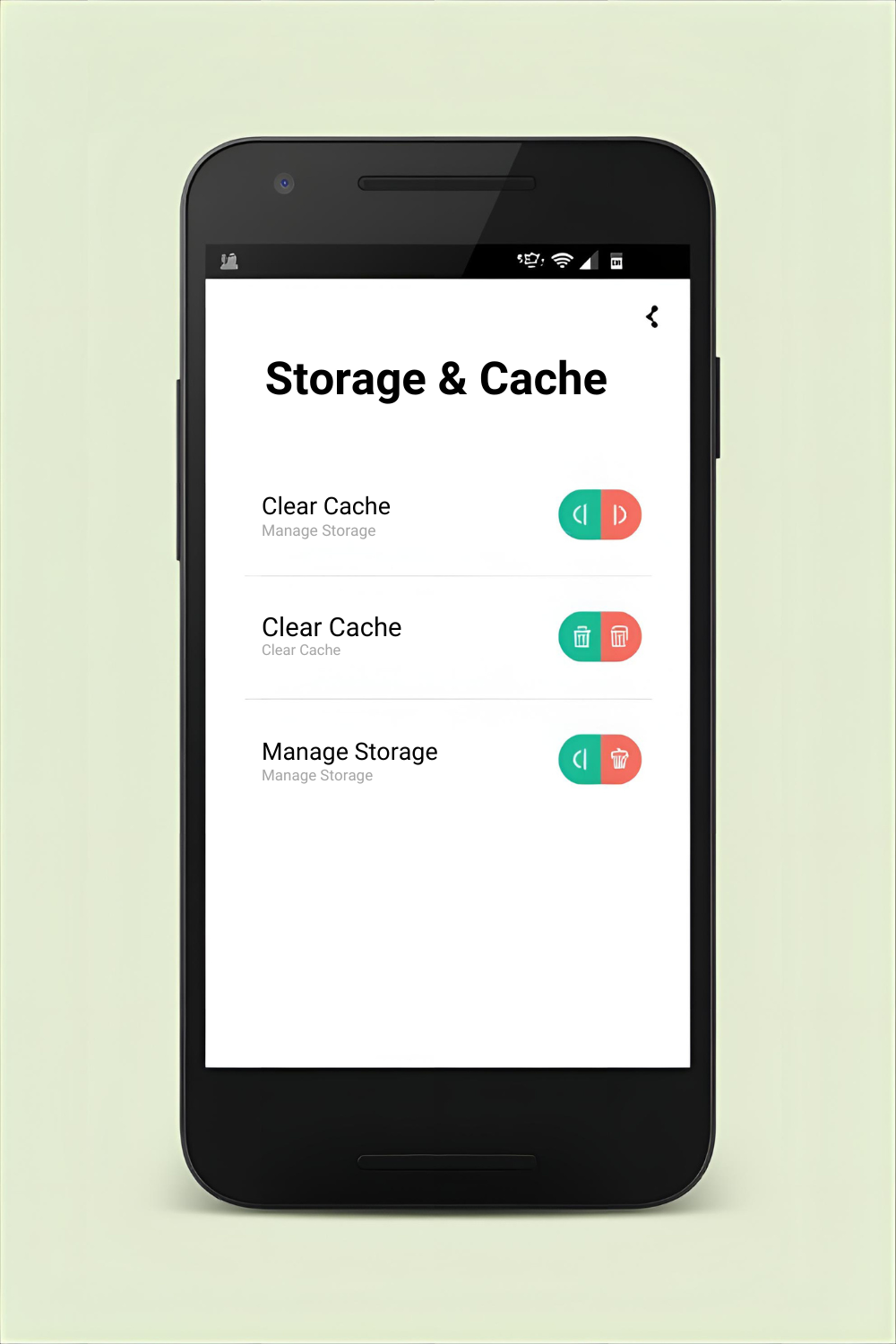
1. Clear Cached Data Regularly
Cached data is created by apps and websites to make your phone faster, but over time, too much cache can actually slow your device. Clearing cached data periodically helps improve performance.
Steps to clear cache:
- Go to Settings > Storage > Cached Data.
- Tap Clear Cached Data.
- You can also clear cache individually for apps by going to Settings > Apps > [App Name] > Storage > Clear Cache.
This simple step can free up space and reduce lag caused by bloated app data.
2. Uninstall or Disable Unused Apps

Every app on your phone consumes storage and runs background processes. Unused apps can slow down your Android phone without you even realizing it.
How to manage apps:
- Go to Settings > Apps > [App Name] > Uninstall to remove apps you no longer need.
- For pre-installed apps that cannot be uninstalled, go to Settings > Apps > [App Name] > Disable.
Keeping only essential apps ensures your device runs faster and consumes less memory.
3. Reduce or Remove Widgets
Widgets look great on the home screen, but they constantly use system resources. Removing unnecessary widgets can help speed up your Android phone.
Tips:
- Keep only essential widgets like clock or weather.
- Remove dynamic widgets from social media apps that refresh constantly.
This reduces background activity, improving battery life and performance.
4. Limit Background Processes
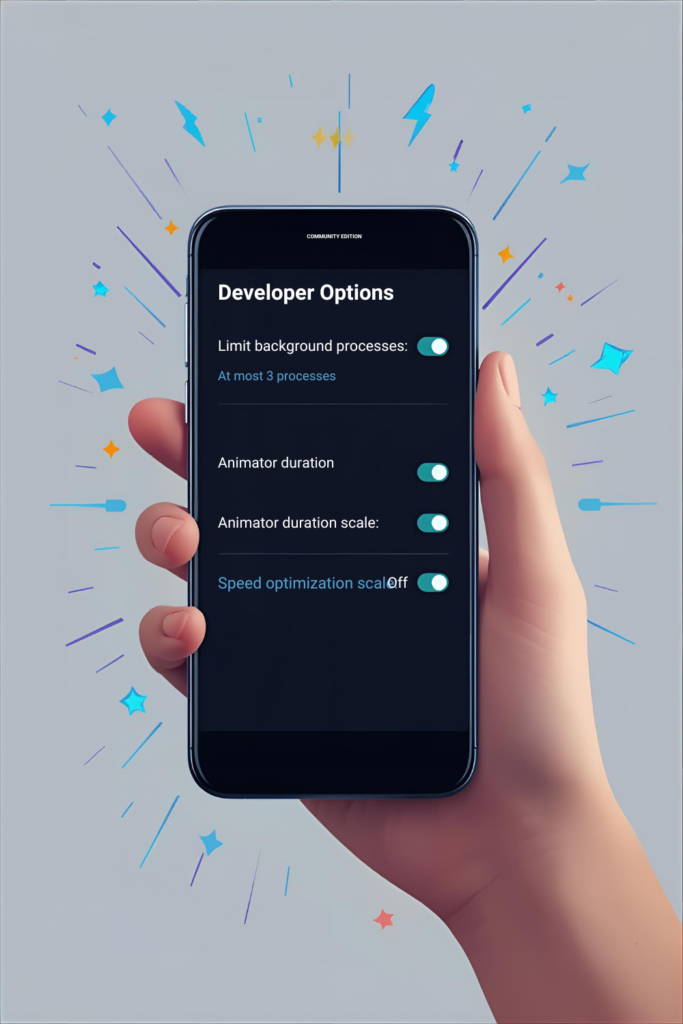
Android allows apps to run in the background, but too many background processes can significantly slow your device.
How to limit background processes:
- Enable Developer Options: Go to Settings > About Phone > Tap Build Number 7 times.
- Go to Developer Options > Limit Background Processes.
- Choose a suitable limit, like 4 processes at most.
This prevents apps from consuming too much RAM and keeps your phone running smoother.
5. Use Lite Versions of Apps
Many popular apps like Facebook, Messenger, and Twitter offer “Lite” versions. These versions are optimized for performance and consume less memory and data.
Advantages of Lite Apps:
- Faster load times
- Less battery usage
- Smaller storage footprint
Switching to lite apps is especially beneficial for older devices with limited RAM.
6. Keep Your Android Updated
Android updates not only bring new features but also include bug fixes and performance improvements. Running outdated software can slow down your phone.
How to update Android:
- Go to Settings > System > Software Update.
- Download and install the latest update.
Regular updates ensure your device runs efficiently and securely.
7. Free Up Storage Space
Low storage space is a major reason why Android phones slow down. Deleting unnecessary files, photos, videos, and downloads can significantly improve performance.
Tips to free up space:
- Use Files by Google to clean junk files.
- Move photos and videos to cloud storage like Google Photos.
- Delete old downloads and duplicates.
A well-maintained storage system keeps your phone responsive.
8. Disable Animations
Animations make transitions smooth but can slow down older Android devices. Disabling them can make your phone feel faster.
Steps:
- Enable Developer Options.
- Go to Settings > Developer Options > Window Animation Scale, Transition Animation Scale, Animator Duration Scale.
- Set all to 0.5x or off.
This gives a noticeable speed boost, especially for older devices.
9. Restart Your Phone Regularly
It might sound simple, but restarting your phone clears RAM and stops unnecessary processes. This often results in a faster, more responsive device.
Tip: Restart your phone at least once a week for optimal performance.
10. Use Performance-Boosting Apps Carefully
There are apps in the Play Store that claim to speed up Android phones. While some can help clear junk files or manage RAM, be careful as others may contain ads or malware.
Safe options:
- CCleaner for junk removal
- Files by Google for storage optimization
Avoid “one-click boost” apps that promise unrealistic performance improvements—they often do more harm than good.
11. Manage Your Battery and Power Settings
High battery usage apps can also slow down your phone. Android’s battery optimization features can help manage performance.
Steps:
- Go to Settings > Battery > Battery Optimization.
- Optimize apps that use excessive power in the background.
Switching to Power Saving Mode when necessary can also help maintain smooth performance.
12. Factory Reset as a Last Resort
If your Android phone is still slow despite all the above steps, a factory reset can restore it to its original speed.
Important: Backup your data before resetting.
Steps:
- Go to Settings > System > Reset Options > Erase All Data (Factory Reset).
- Confirm and wait for the device to restart.
This removes all apps, files, and settings, giving your phone a fresh start.
Bonus Tips to Keep Your Android Fast
- Avoid live wallpapers that consume extra RAM.
- Limit auto-syncing for unnecessary accounts.
- Keep only essential apps on the home screen.
- Use lightweight browsers like Chrome Lite or Opera Mini.
Implementing these small habits ensures your Android phone stays fast for longer.
Conclusion
Sluggish performance on Android phones is common but fixable. By clearing cache, uninstalling unused apps, optimizing settings, and managing storage, you can significantly speed up your Android device. Regular maintenance, combined with mindful app usage, ensures a smooth, fast, and efficient Android experience.
Remember, the key to a fast Android phone is a combination of good habits, regular updates, and proper storage management. Follow these steps, and your phone will feel like new again!